MP280
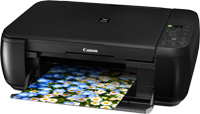
Compatible Canon PG-512 & CL-513
|
Compatible Canon PG-512 & CL-513 (Top View)
|
Compatible Canon PG-512 & CL-513 (Bottom
View - Print Head View)
|
|
|
|
|
Compatible Canon PG-512 & CL-513 (Side View)
|
|
|
|
Compatible Canon PG-512 & CL-513 (Side View
No Clip)
|
|
|
|
Compatible Canon PG-512 & CL-513 (Front View
- Chip View)
|
Compatible Canon PG-512 & CL-513 (Batch Code
Example)
|
|
|
|
Cartridge missing or damaged / E15 - Cartridge cannot be recognised
- Remove the faulty cartridge from the printer.
- Make sure all the packaging clips and blue tape covering the copper part of the cartridge have been removed from the cartridge.
- Clean the contacts with a dry cloth or tissue.
- Pull the power cable out the back of the printer and leave the printer off for 15 minutes.
Low/Empty Ink
Resolution 1
Printer is not allowing printing as it believes the cartridge has been previously used
Resolution
- After the following error message appears on your screen, press the printer’s Start button once.
- This will clear the error message and allow for printing. However the ink status monitor will be disabled.
- Print quality will have to be used to determine how much ink is left.
Previously used / Low ink error
Note: Print quality deteriorates quickly when the cartridge is out of ink.
Printout to show print quality deterioration
Resolution 2
Printer is not allowing printing as it believes the cartridge to be out of ink
Resolution
- Insert the cartridges and try to send a document to print.
- Wait until the low/empty ink error message appears.
- With the error message on screen, hold down the cancel button (or power/start button depending on the message) for 5 seconds (add 5 seconds if it doesn't work).
- This should reset the cartridge and allow printing.
Ink in the cartridge, but not printing
- The cartridge may show as empty or produce faded print despite ink remaining.
- Printing stops once the cartridge reaches around 30% remaining ink, which is kept as a reserve.
- This reserve cannot be accessed and is used to keep the internal sponge moist and protect the printhead.
- This is normal behaviour and not a fault.
- The cartridge will need to be replaced.
Printing blank pages / fading on print / incorrect colours being produced
- There may be a blockage on the print nozzles caused by dried ink or an air lock.
- Use a cotton bud dampened with warm water and gently wipe the printhead area.
- Dab the printhead onto a clean absorbent kitchen towel until ink begins to flow.
- For black cartridges: a solid black oval should appear.
- For colour cartridges: cyan, magenta, and yellow marks should appear.
- Clean the copper contact points on the cartridge and inside the printer with a dry lint-free cloth.
Printers that use Canon PG-512 / CL-513 cartridges
To see a full list of products that work in your printer, click on the model name below:
Printer Consumables (Canon PG-512 / CL-513)
| 2969B001AA | 2969B001AA-REM | 2970B001AA | 2970B010-OLD |
| 2971B001AA | 2971B001AA-REM | 2972B001AA | PG512-CL513-3PACK |
| PG512-CL513-3PACK-OLD-REM | PG512-CL513-PACK | PG512-CL513-PACK-REM | PG512-CL513-3PACK-REM |
| 2970B010-REM-OLD | 2970B010-REM | 2970B017 | 2970B010 |
Brand names and trademarks are the property of their respective holders and are used for description purposes only.