M426dn
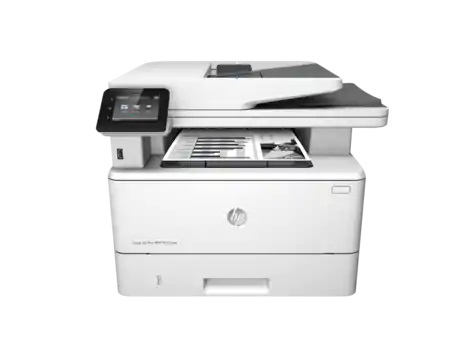
Compatible HP 26X
|
Compatible HP 26X (Front View)
|
|
|
|
Compatible HP 26X (Back View)
|
|
|
|
Compatible HP 26X (Side View)
|
|
|
|
Compatible HP 26X (Side View)
|
|
|
Compatible HP 26A
|
This image shows the front of the cartridge,
the product
range and colour is displayed on the large label.
|
|
|
|
The back of the cartridge can be seen in this
image,
the tape must be removed before installation.
|
|
|
|
This image shows the left side of the cartridge,
the
chip must be clear of impurities before installing.
|
|
|
|
The right side of the cartridge can be seen in
this image,
the smaller label will display the barcode.
|
|
|
-
To resolve this, please try adjusting the gear and reinstall
to check
the result.
- If the issue is still present, please replace with a new cartridge and follow the installation instructions.
10.0X.30 Unauthorised Cartridge
- The administrator has configured this printer to use only genuine HP cartridges.
10.0X.57 Protected Cartridge
- The cartridge can only be used in the printer or fleet of printers that initially protected it using HP Cartridge Protection.
- Resolution:
- Use the printer control panel to disable the Cartridge Policy feature:
- From the Home screen on the printer control panel, touch the Menu icon.
- Open Supplies > Settings.
- Touch the button next to Authorized HP Cartridge Policy to disable the feature.
- Please note: Once Cartridge Policy is disabled, the cartridges already installed will no longer work, but you should be able to install new compatible cartridges with no issues.
- If these steps do not disable Cartridge Protection, please contact your network administrator who should be able to disable this feature from the HP EWS (Embedded Web Server).
My prints are faded
- If the print quality is poor, remove the toner cartridge from the printer and gently rock the cartridge from side to side.
- This movement helps distribute the toner evenly within the cartridge.
- After rocking the cartridge 5–6 times, re-insert the cartridge into the printer and print a test page.
- If the issue persists, check the life of the maintenance items in your machine in case any of them need to be replaced.
Faint characters on printouts
- Print 15–20 pages and check to see if the problem persists.
Poor print quality / faded prints / lines on printouts
During the printing process, paper, toner, and dust particles can accumulate inside the printer and cause print-quality issues such as toner specks, smears, streaks, lines, or repeating marks.
Resolution 1 (For HP LaserJet Pro M402 & M403)
- On the printer control panel, press "OK".
- Open the following menus: Service > Cleaning.
- Load plain letter or A4 paper when prompted, then press "OK".
- Wait until the process is complete.
Resolution 1 (For HP LaserJet Pro MFP M426)
- On the printer control panel, press "Setup".
- Open the "Service" menu and select "Cleaning Page".
- Load plain letter or A4 paper when prompted, then press "OK".
- Wait until the process is complete.
Resolution 2
- If the print quality is poor, remove the toner cartridge from the printer and gently rock the cartridge from side to side.
- This movement helps distribute the toner evenly within the cartridge.
- After rocking the cartridge 5–6 times, re-insert the cartridge into the printer and print a test page.
Printers that use HP 26A / 26X cartridges
To see a full list of products that work in your printer, click on the model name below:
Printer Consumables (HP 26A / 26X)
| CF226A | CF226A-REM | CF226X | CF226X-REM |
| CF226XD | CF226XD-REM | RM2-2555-000CN | D9P29A |
Brand names and trademarks are the property of their respective holders and are used for description purposes only.