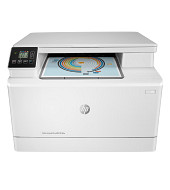
MFP M182n
Cartridge is not compatible / Cartridge is not recognised
- The compatible cartridge has been installed correctly, but the printer is not registering it as installed or states it is not compatible.
- Remove the affected cartridge or cartridges from the printer.
- Turn the printer off and wait for 2 minutes.
- Turn the printer back on and wait for a further 2 minutes.
- Once the printer warns that certain cartridge or cartridges are missing, reinstall them one at a time.
Non HP-Chip detected
- This could be due to a new HP firmware update on the printer.
- Please contact our customer care centre for more information.
My prints are faded
- If the print quality is poor, remove the toner cartridge from the printer and gently rock the cartridge from side to side.
- This movement helps distribute the toner evenly within the cartridge.
- After rocking the cartridge 5–6 times, re-insert the cartridge into the printer and print a test page.
- If the issue persists, check the life of the maintenance items in your machine in case any of them need to be replaced.
Faint characters on printouts
Print 15–20 pages and check to see if the problem persists.
Streaks on the page
- Remove the toner cartridge from the printer and gently rock the cartridge from side to side.
- This movement helps distribute the toner evenly within the cartridge.
- Carefully clean the drum roller to remove any excess toner.
- Re-insert the cartridge into the printer and print a test page.
- If the problem persists, repeat the previous steps.
Printers that use HP 12A / 12X cartridges
To see a full list of products that work in your printer, click on the model name below:
Printer Consumables
| Q2612A | Q2612A-REM | Q2612AD | Q2612AD-REM |
Brand names and trademarks are the property of their respective holders and are used for description purposes only.